|
|
|
|
|
|
|
|
|
|
|
|
|
|
|
|
|
|
|
|
|
|
|
|
|
|
|
|
Portable_Cam |
|
|
|
|
|
|
|
|
|
|
|
|
|
|
|
|
|
|
|
|
|
|
|
|
|
*** |
|
Topology |
|
|
|
|
|
Ver |
|
Portable_Cam |
|
|
|
|
|
7/16/24 |
|
|
|
|
|
|
|
|
|
|
|
|
|
|
|
|
|
|
|
|
|
|
|
|
|
|
|
|
|
|
|
|
|
|
|
|
|
|
|
|
|
|
|
|
|
|
|
|
|
|
|
|
|
Farmington |
|
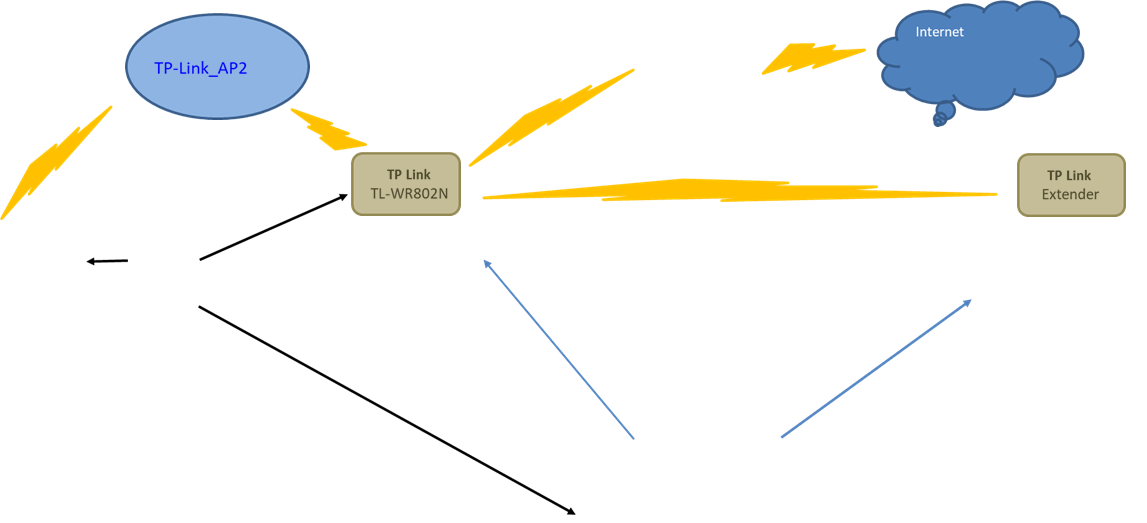
WISP mode |
|
|
|
|
|
|
|
|
|
|
|
|
Smartphone |
|
|
|
|
|
|
|
|
|
|
|
Hill City |
|
|
("Hot spot") |
|
|
|
|
|
|
|
|
|
|
|
(enable hotspot) |
|
|
|
|
|
|
|
|
|
|
|
Hoppe |
|
|
|
|
|
|
|
|
|
|
|
|
|
|
Public Wi-Fi |
|
|
|
|
|
|
|
|
|
|
|
Misc |
|
|
|
|
|
|
|
|
|
|
|
|
|
|
( mdh-verizon ) |
|
|
|
|
|
|
|
|
|
|
|
Nano_AP |
|
|
|
|
|
|
|
|
|
|
|
|
|
|
"Client" |
|
|
|
|
|
|
|
|
|
|
|
Nano_Brad |
|
|
|
|
|
|
|
|
|
|
|
|
|
|
|
|
|
|
|
|
|
|
|
|
|
|
Nano_DS |
|
|
|
|
|
|
|
|
|
|
|
|
|
|
|
|
|
|
|
|
|
|
|
|
|
|
Nano_Mike |
|
|
|
|
|
|
|
|
|
|
|
|
|
|
|
|
|
|
|
|
|
|
|
|
|
|
Port_Forwarding |
|
|
|
|
|
|
|
LAN |
|
|
|
WAN |
|
|
|
|
|
|
|
|
|
|
|
|
|
|
Portable_Cam |
|
|
|
|
|
|
|
|
|
|
|
|
|
|
|
|
|
|
|
|
|
|
|
|
|
|
|
|
|
|
|
|
|
|
|
|
|
|
|
|
|
|
|
|
|
|
|
|
|
|
|
|
|
|
|
|
|
|
|
|
|
|
|
|
|
|
|
|
Extender |
|
|
|
|
|
|
|
|
|
|
|
|
|
|
|
|
|
|
|
|
|
http://tplinkwifi.net |
|
|
|
|
|
|
|
|
|
ip via DHCP from TP-Link_AP2 |
|
|
|
|
|
Amcrest |
|
Ext. |
|
|
Browser > |
|
http://192.168.7.1 |
|
|
|
|
|
|
|
|
|
|
192.168.7.100 |
|
|
|
|
|
|
|
Camera |
|
Battery |
|
|
|
|
admin (admin) |
|
|
|
|
|
|
|
|
|
mdh (mdh) |
|
|
|
|
|
|
|
IP2M-841B |
|
|
|
|
|
|
mdh (mdh) |
|
|
|
|
|
|
|
|
|
|
|
|
|
|
|
|
|
|
192.168.7.254:8038 |
|
|
|
|
|
|
|
|
|
|
|
|
|
|
|
|
|
|
|
|
|
|
|
|
|
192.168.7.253:8038 |
|
|
|
LED > |
|
Solid |
|
The router is connected to the host Wi-Fi
network or internet. |
|
|
|
|
|
|
|
|
|
|
|
|
admin (ra@00) |
|
|
|
|
|
|
Blinking steadily |
The router is disconnected from the host Wi-Fi
network or internet. |
|
|
|
|
|
|
|
|
|
|
|
mdh (Z2…8) |
|
|
|
|
|
|
Blinking irregularly |
|
The router is booting or updating firmware. |
|
|
|
|
|
|
|
|
|
|
|
|
|
|
|
|
|
|
|
|
|
|
|
|
|
|
|
|
|
|
|
|
|
|
|
|
|
|
|
|
|
Setup > System > Manage Users > |
|
|
|
|
|
|
|
|
|
|
|
|
|
|
|
|
|
|
|
|
|
|
|
|
|
|
|
|
|
|
|
|
|
|
|
|
Devices |
|
|
|
|
|
|
|
|
|
|
|
|
|
|
192.168.7.254 wifi (default) |
|
|
|
|
|
|
|
|
|
Laptop |
|
|
|
|
|
|
|
|
|
|
|
|
|
|
192.168.7.253 wired |
|
|
|
|
|
|
|
|
|
|
Phone |
|
|
|
|
|
|
|
|
|
|
|
|
|
|
|
|
|
|
|
|
|
|
|
|
|
|
Tablet |
|
Devicves |
|
|
|
|
|
|
|
|
|
|
|
|
|
|
|
|
|
|
|
|
|
|
|
|
Raspberry Pi |
|
Connect to the LAN
WIFI :
(TP-Link_AP2) or (TP-Link_Ext) |
|
|
|
|
|
|
|
|
|
|
|
|
|
|
|
|
|
|
… |
|
|
then access camera via a browser |
|
|
|
|
|
|
|
|
Notes: |
|
|
|
|
|
|
|
|
|
|
rpi |
|
|
|
|
|
|
|
|
|
|
|
|
|
|
|
|
|
|
|
|
|
|
|
|
|
|
subnet router
(connect to TP-Link_AP2) |
|
|
|
|
|
|
|
|
|
|
|
|
TP Link |
|
|
|
|
|
|
|
|
|
|
mdh (mdh) |
|
|
|
|
|
|
|
|
|
|
|
|
|
|
After resetting device: |
To connect to it you must connect your
PC/Laptop to either the |
|
|
|
|
|
|
|
|
|
|
|
|
|
|
|
|
|
|
|
|
TP-Link_2016 SSID or the TP-Link_B5EE SSID. |
|
|
|
|
|
|
|
|
|
|
|
|
|
|
|
|
|
|
|
|
Then you should be able to log into it via this
link ----> |
http://tplinkwifi.net |
|
|
|
|
|
|
|
|
|
|
|
|
|
|
|
|
|
|
It's defaul IP should be either 192.168.0.1 or 192.168.1.1 |
|
|
|
|
|
|
|
|
|
|
|
|
|
|
|
|
|
|
|
Do the QUICK setup first --->
select the WISP
mode |
|
|
|
|
|
|
|
|
|
|
|
|
|
|
|
|
|
|
|
After the reboot following the QUICK
setup, you can log back in |
|
|
|
|
|
|
|
|
|
|
|
|
|
|
|
|
|
|
|
|
and set the desired LAN (ie 192.168.7.1 ) |
|
|
|
|
|
|
|
|
|
|
|
|
|
|
|
|
|
|
|
|
|
|
|
|
|
|
|
|
|
|
|
|
|
|
|
|
|
|
|
|
|
|
|
|
|
|
Amcrest Camera |
|
The camera is currently set to try signing into |
|
|
|
|
|
|
|
|
|
|
|
|
|
|
|
|
|
|
|
|
|
the SSID of
TP-Link_AP2 |
|
|
|
|
|
|
|
|
|
|
|
|
|
|
|
|
|
|
|
|
|
|
|
(So be sure to set that as the SSID in the TP link setup) |
|
|
|
|
|
|
|
|
|
|
|
|
|
|
|
|
|
|
|
|
|
|
|
|
|
|
|
|
|
|
|
|
|
|
|
|
|
|
|
|
|
|
|
|
|
|
|
|
|
|
|
|
|
|
|
|
|
|
|
|
|
|
|
|
|
|
|
|
|
|
|
|
|
|
|
|
|
|
|
|
|
|
|
|
|
|
|
|
|
|
|
|
|
|
|
|
|
|
|
|
|
|
|
|
|
|
|
|
|
|
|
|
|
|
|
|
|
|
|
|
|
|
|
|
|
|
|
|
|
|
|
|
|
|
|
|
|
|
|
|
|
|
|
|
|
|
|
|
|
|
|
|
|
|
|
|
|
|
|
|
|
|
|
|
|
|
|
|
|
|
|
|
|
|
|